Downloading photos using Flickr
For those parents and students who wish to obtain high resolution images from the credit course activities we suggest that you use the following instructions.
1. Visit the Italianculture.ca website for regular photo updates
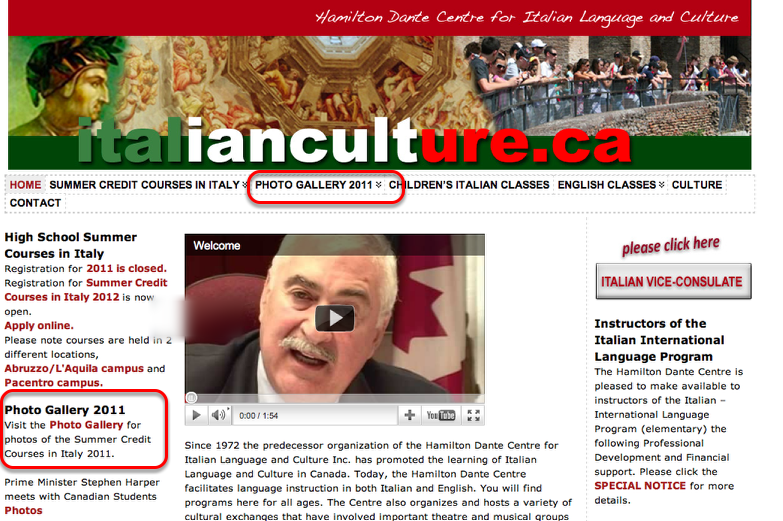
Go to Italianculture.ca web site. www.italianculture.ca Click on Photo Gallery 2011 to view the photos as they become available.
2. Select the Campus location that your child is attending.
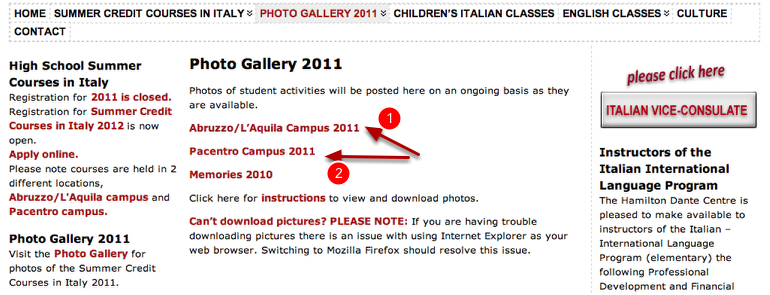
Click the links to the appropriate campus. 1. Abruzzo/L'Aquila Campus or 2. Pacentro Campus
3. Each campus will have a list of updates. Select an update page to view photos. Updates are organized by campus location and date.
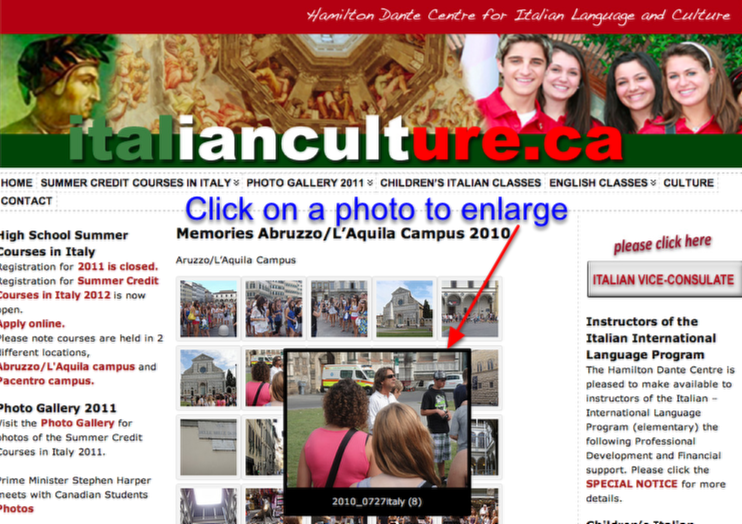
Mouse over an image to view and then click on an image to enlarge it.
4. Locate the Link to the Flickr website
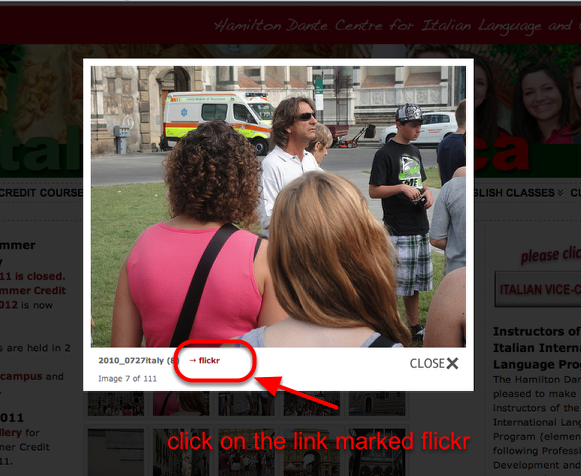
Click on the "flickr" link and you will be directed immediately to the Flickr site and the picture you want to download.
5. Locate the high resolution version of the photo.
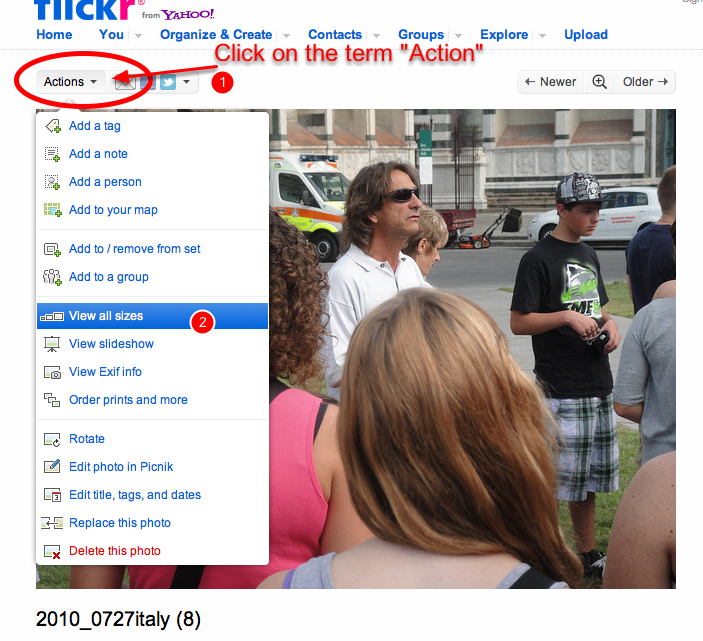
Above the upper left corner of the picture is an action button. Click on it and a drop down menu will open with a list of actions. Scroll down to "view all sizes" Click the text to open a new window and select photo.
6. Choose a file size to download
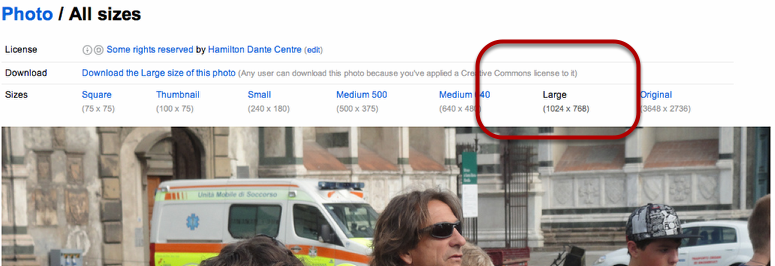
Select a file size for the picture you wish to use. The larger the numbers - the larger the file size and the higher the resolution of the picture. For viewing on your computer the medium size works well. For printing pictures, choose the large or original size. In some cases, the large size may also be the original. Go to Photo Gallery 2011